
Join Multiple Images into a Single File Instantly!
Drag & Drop image files here or click to upload
Adjustments
Flip
Crop
Text Overlay
Set your text options above, then click the button and tap anywhere on the image to place.
Save & Actions
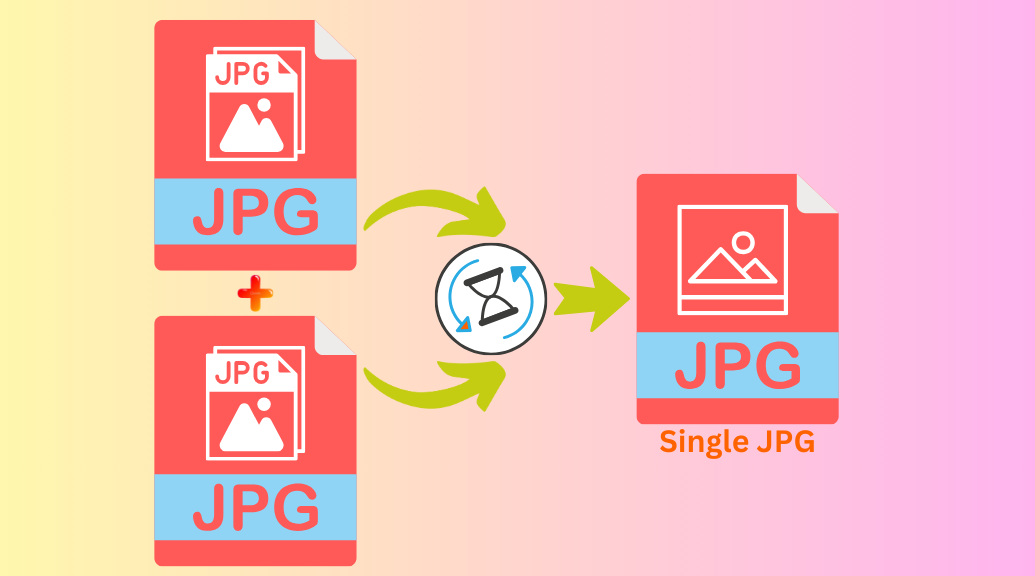
.Want to merge JPG files online without downloading software or paying for a subscription you’re in the right place. Our free JPG merger tool lets you combine multiple JPG images into one clean, high-quality file directly in your browser, in under a minute. No sign-up. No watermarks. No cost. Just a simple, fast way to merge JPG images online whenever you need it.
Merged JPG Images
What Does It Mean to Merge JPG Files?
When you merge JPG files, you’re taking two or more separate JPG or JPEG images and combining them into a single output file. The images can be stacked vertically, placed side by side horizontally, or arranged in a grid — depending on what you need.
People merge JPG images online for all kinds of reasons:
- Combining scanned document pages saved as separate JPG files
- Merging before-and-after photos into one image
- Joining screenshots to show a complete workflow or tutorial
- Building a quick photo collage without using heavy editing software
- Sending one image file instead of multiple attachments
- Compiling product photos into a single reference sheet
Unlike PDF tools or full photo editors, a JPG file merger is focused and straightforward. Upload, arrange, merge, download. That’s it.
How to Merge JPG Files Online
Follow these quick steps to merge JPGs without losing quality:
1. Upload Your JPG Images
Click the Upload Images button or drag and drop multiple JPG files. Our tool supports batch uploads, so you can add several files at once.
2. Arrange the Image Order
Drag and reorder your images exactly how you want them. Choose your layout style:
- Horizontal Merge – Place images side by side.
- Vertical Merge – Stack images on top of each other.
3. Merge and Download
Click Merge, and your images will be combined instantly. Preview the result and download your merged file in seconds.
Why Use Our Tool to Merge JPG Files Online?
There are plenty of image tools online. Here’s why people keep coming back to this one to merge JPG files online:
✔ 100% Free Always
- No subscription, no trial, no premium plan
- No watermarks stamped on your merged image
- No account or email address required
- Use it to merge JPG images online as many times as you want, at zero cost
✔ No Software or App Required
- Runs entirely in your browser — nothing to install
- Works on Chrome, Firefox, Safari, and Edge
- No plugins, no extensions, no app downloads needed
- Use it to merge JPG files online from any device — desktop, laptop, tablet, or phone
✔ Original Image Quality Preserved
- Resolution stays intact when you merge JPG images — no blurring or pixelation
- No forced compression that degrades output quality
- Output is a clean, standard JPG compatible with all platforms
- Suitable for both web use and print-quality output
✔ Fast and Instant Processing
- Images are merged in real time — no queuing or waiting
- Handles large batches without slowing down
- Preview loads quickly so you can check the result right away
- Download your merged JPG file within seconds of clicking merge
✔ Secure and Private
- Uploaded files are automatically deleted after processing
- No human review of your images at any point
- Safe to use for personal photos, business documents, and confidential files
- Your data stays private every time you merge JPG files online
✔ Works on Any Device
- Fully mobile-friendly interface
- Responsive design works on small screens without losing functionality
- No app download needed to merge JPG files on iPhone, Android, or tablet
- Same clean experience on desktop and mobile
Who Uses This JPG Merger Tool?
All kinds of people merge JPG files online every day. Here’s how different users put it to work:
Students and Academic Users
- Combine scanned assignment pages into one image for easy submission
- Merge handwritten notes from multiple pages into a single file
- Put together visual research materials or diagrams for a project
- Merge JPG files online to submit multi-page work as one attachment
Business and Professional Use
- Merge scanned receipts, invoices, or expense documents into one image
- Combine product photos for a quick visual spec sheet or catalog
- Create before-and-after visuals for client presentations
- Compile screenshots of reports, dashboards, or data into one file
- Use our tool to merge JPG images online for fast, professional documentation
Designers and Creatives
- Assemble design mockups or concept boards into a single reference image
- Build side-by-side design comparisons for client review
- Merge JPG files to create texture or pattern reference sheets
- Combine product shots for e-commerce listings or social media
- Quick photo collages without opening Photoshop or Illustrator
Personal and Everyday Use
- Combine vacation or event photos into one shareable image
- Merge scanned family documents or certificates for digital storage
- Create a photo timeline for a birthday, anniversary, or milestone
- Merge JPG files online to send one image instead of a dozen attachments
JPG vs JPEG — What’s the Difference?
Nothing — they’re the same format. JPEG stands for Joint Photographic Experts Group. The .jpg extension became standard on Windows due to a 3-character file extension limit. Mac and Linux systems used .jpeg more often.
Today, both refer to identical files. When you merge JPG and JPEG files online using our tool, there’s no compatibility issue. Upload a mix of .jpg and .jpeg files and they’ll combine into one clean output without any problems.
Tips for Better Results When You Merge JPG Files Online
Get the cleanest output every time with these practical tips:
- Match image dimensions before uploading – Images with very different widths or heights can create uneven edges or white space in the merged result. Crop them to similar sizes first for a cleaner output
- Keep resolution consistent – Mixing a high-res photo with a low-res screenshot will make the difference obvious once merged. Try to use images with similar quality levels
- Double-check the order – Always confirm the sequence before you click Merge, especially for scanned document pages. Reordering after merging means starting over
- Use the preview – Before downloading, check the preview carefully. If the layout looks off or images are misaligned, fix it before saving
- Watch the file size – Merging several large JPGs produces a larger output file. If you need a smaller size, compress or resize the file after downloading using any standard image viewer
- Use vertical merge for documents – If you’re combining scanned pages, vertical merge almost always gives the most natural reading layout
FAQ
Is it really free to merge JPG files online?
Yes — completely free. No hidden fees, no watermarks, no subscription required. You can merge JPG files online as many times as you need at no cost.
Do I need to create an account to merge JPG images?
No account, no sign-up, no email address needed. Open the tool and start uploading immediately.
How many JPG files can I merge at once?
There’s no strict cap. You can upload and merge multiple JPG files in a single session without hitting a file number limit.
Will merging reduce my image quality?
No. The tool preserves original resolution when you merge JPG files online. Your output image will not be blurry or lower quality than the source files.
Is it safe to upload personal or business images?
Yes. Files are automatically deleted after processing. Nothing is stored or reviewed. It’s safe to merge JPG images online even with confidential or sensitive content.
Can I merge JPG files on my phone?
Yes the tool is fully browser-based and mobile-friendly. You can merge JPG files online from any smartphone or tablet running iOS or Android.
What if my images have different sizes?
The tool will still merge JPG files but you may see white space or uneven borders. For the best result, crop images to similar dimensions before uploading.
Can I merge JPG and JPEG files together?
Absolutely. JPG and JPEG are the same format. Mix and match both file types and they’ll merge into one JPG file without any issues.
Merge JPG Files Online – Start Now
Stop wasting time with complicated software or paid tools. Our free online JPG merger gives you a fast, clean way to merge JPG files online exactly how you want them, in under a minute.
Upload your images. Pick your layout. Download your merged file.